
Create Member Activity
Within Loyalty, an Activity refers to some Member action or behavior, such as making a purchase, downloading an app, enrolling in your loyalty program, or following your brand on social media. An Activity can also represent an interaction with a Loyalty asset, such as a change in membership Tier, earning a punch on a Punch Card, or updating a Member Attribute. Typically these Activities are generated automatically when the Member performs the specified action.
From the Member Details screen, you can manually create an Activity for a Member.
To create a Member Activity record from the Member Details screen:
-
Select Members from the top navigation bar, then select Members > Members from the side navigation menu. The Members screen is displayed.
-
On the Members screen, search for and select the desired Member (see Search for a Member for more information). The Member Details screen is displayed with the Metrics tab selected by default.
-
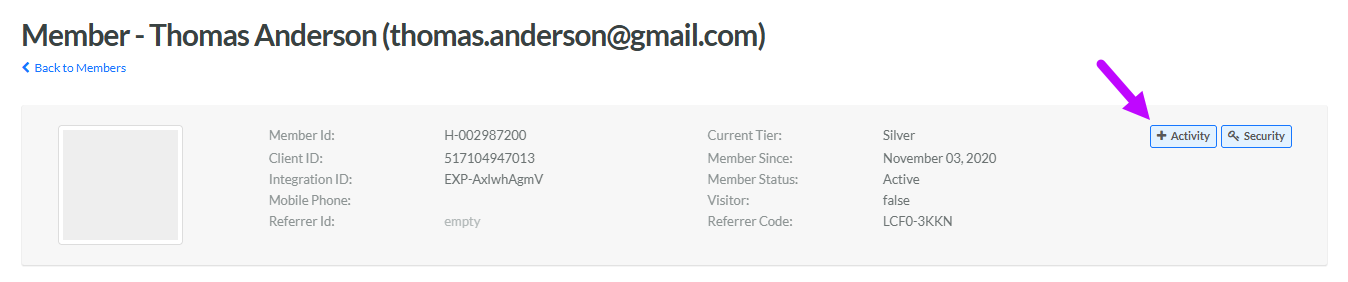
Within the header section of the screen, click Activity. The New Activity pop-up window is displayed.
-
The Activity Time field is automatically populated with the current date / time. Optionally click into this field, and from the calendar pop-up, select a different date / time for when you want the platform to record the Activity.
-
From the Time Zone drop-down menu, select the time zone to use for the Activity date / time.
-
From the Activity Type drop-down menu, select the desired Activity Type (the valid Activity Types for your Loyalty account are defined on the Activity Type screen).
-
The platform displays a list of all the Attributes that comprise this Activity Type record. By default, the Attributes are displayed in Structured mode, as a data entry form. Optionally, toggle to Raw mode to instead view the record as JSON.
-
Enter or select the Attribute values as needed.
-
Click Create.
